
GUI#
This section contains the description of the GUI of the Recipe Image Generator.
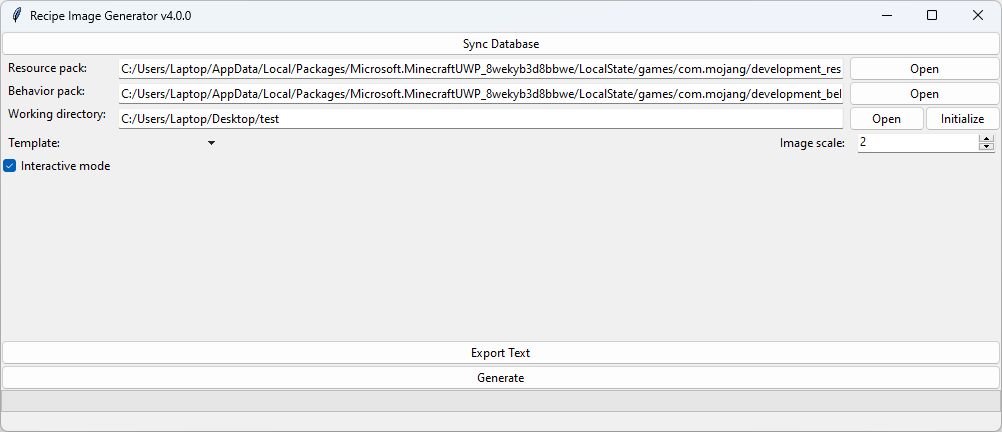
Project Data Form#
Below the syncing button, there is a section for providing the information about the project:
Resource pack - the text field for the path to the Resource Pack of the project.
Behavior pack - the text field for the path to the Behavior Pack of the project.
Working directory - the text field for the path to the directory of the Recipe Image Generator.
All of the text fields have an Open button which can be used to find the path to the directory in the file explorer. The “Working directory” additinally has an Initialize button which can be used to initialize the directory with the default project.
In projects that are already initialized the “Initialize” usefult to update the recipe_properties.json. The buton never deletes any content from the recipe_properties.json but it can extend it with new recipes from the behavior pack.
Configuration of the Generator#
Below the project settings there are a few settings that affect how the images are generated:
Template - the template that defines the layout of generated images. You can read more about the templates in the Templates article.
Interactive mode - if enabled, the app will run in interactive mode, asking for paths to the images it can’t find. Otherwise, if it can’t find a texture, some parts of some images will be missing. You can read about the interactive mode window in the Usage article.
Image scale - the scale of the image. The value is between 1 and 20. Its value is multiplied by the base image size of the recipe. This is useful because some of the templates scale the textures down and the images get pixelated.